In the app
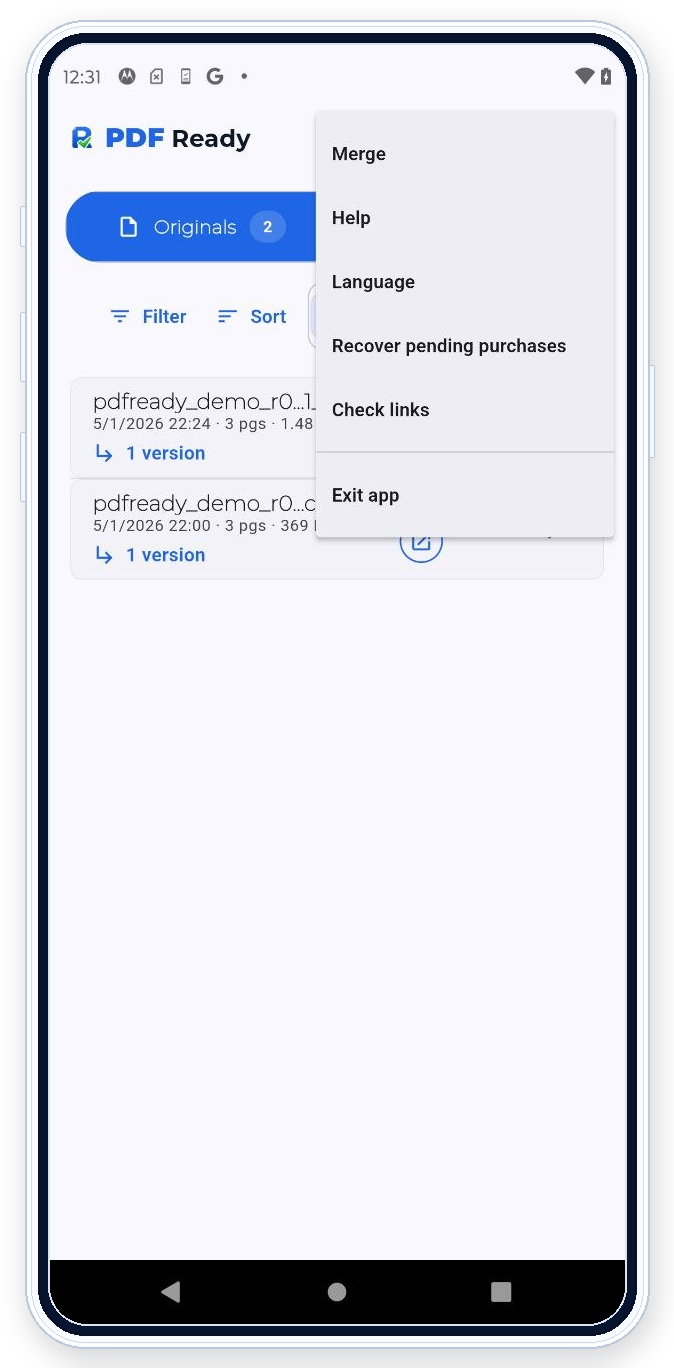
Open the top menu and tap Merge
When there is more than one file in the list, the merge action appears in the three-dot menu in the top-right corner. Tap “Merge”, select the PDFs that belong together, and review the result before export.

PDF Ready can combine supporting PDFs into one file when you need to submit one document. The goal is a focused upload file, not a document dump.
In the app
When there is more than one file in the list, the merge action appears in the three-dot menu in the top-right corner. Tap “Merge”, select the PDFs that belong together, and review the result before export.
What this helps with
Use merge when related supporting documents need to be submitted together in a single PDF. This is useful when the process or portal asks you to provide those documents as one combined file.
Workflow
Import the supporting PDFs, merge them, then review the merged page set. After that, choose an exact size target or export the clean copy when ready.
Review
Check page order, duplicate pages, file size, and whether every merged page belongs in the upload. Remove unrelated pages before export.
Boundary
Do not use merge to create a document dump. Keep the upload focused on the pages requested by the destination workflow.
Portal requirements
PDF Ready prepares around known checks such as size, pages, readability, restrictions, active content, and requested options. If the portal shows an error the app can help resolve, you can adjust and generate another clean copy.
Related features
Use Edit pages after merging. Use Exact size targets if the merged file is too large. Use Review before export before clean export.
Trust link: Privacy.