In the app
Open the PDF menu and tap Add photo/image
From the file’s three-dot menu, you can add a photo or image to the PDF. Use it when that image belongs in the same document, then review order, readability, and size before export.
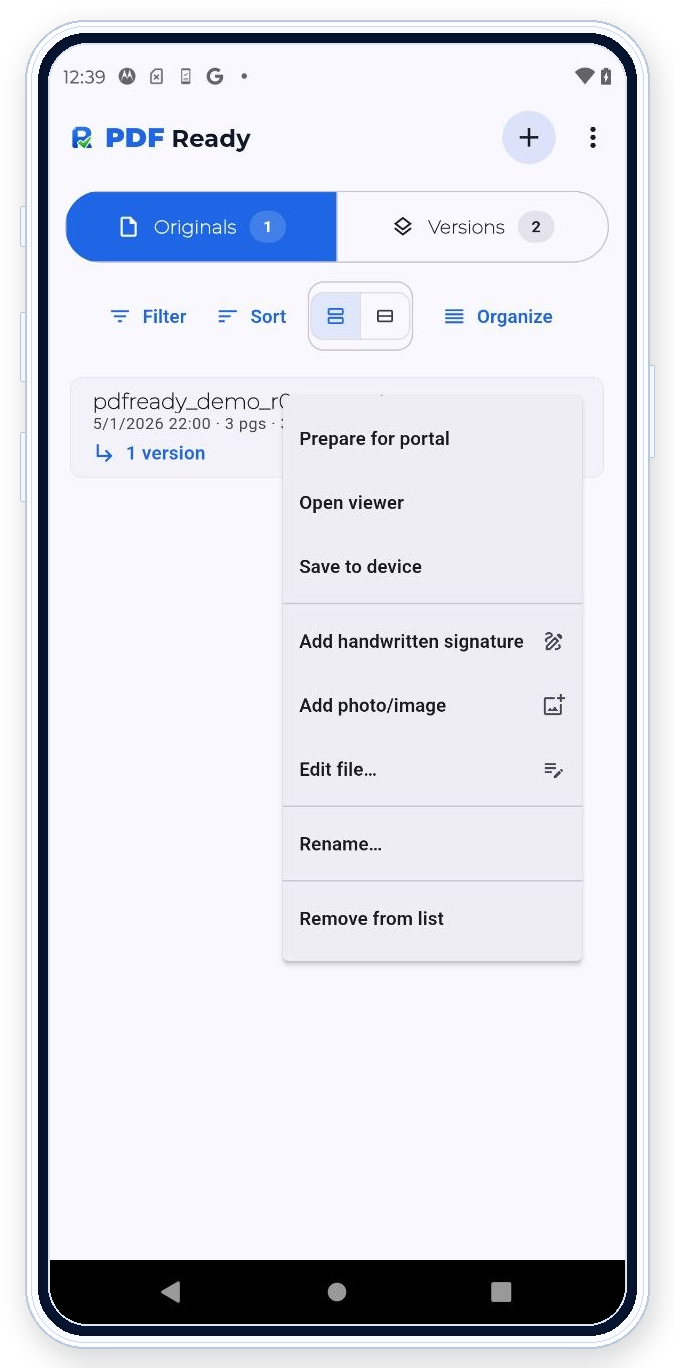

PDF Ready can add photo pages or supporting images when they belong in the same PDF. This helps when an upload packet needs a photo, receipt, passport image, or supporting page in the same document.
In the app
From the file’s three-dot menu, you can add a photo or image to the PDF. Use it when that image belongs in the same document, then review order, readability, and size before export.
What this helps with
Use this when a photo or image is part of the same upload document. Examples include a supporting receipt, a photo page, a scanned image, or a document image that needs to travel with the PDF.
Workflow
Add the photo to the document, then review the page set before choosing a target size or exporting. The added image becomes part of the prepared PDF workflow.
Review
Check whether the added photo is readable, whether it belongs in the same file, whether page order is correct, and whether the final PDF still fits the upload target.
Boundary
PDF Ready is not for retouching images or building large image collections. Add only the images that belong in the upload document.
Portal requirements
PDF Ready prepares around known checks such as size, pages, readability, restrictions, active content, and requested options. If the portal shows an error the app can help resolve, you can adjust and generate another clean copy.
Related features
Use Edit pages if the added photo needs to be moved or removed. Use Exact size targets if the image makes the file too large. Use Review before export before clean export.