In the app
Open the PDF menu and tap Add handwritten signature
From the file’s three-dot menu, you can add a visible handwritten-style mark to the PDF. Then review the page where it appears to confirm placement, scale, and readability before export.
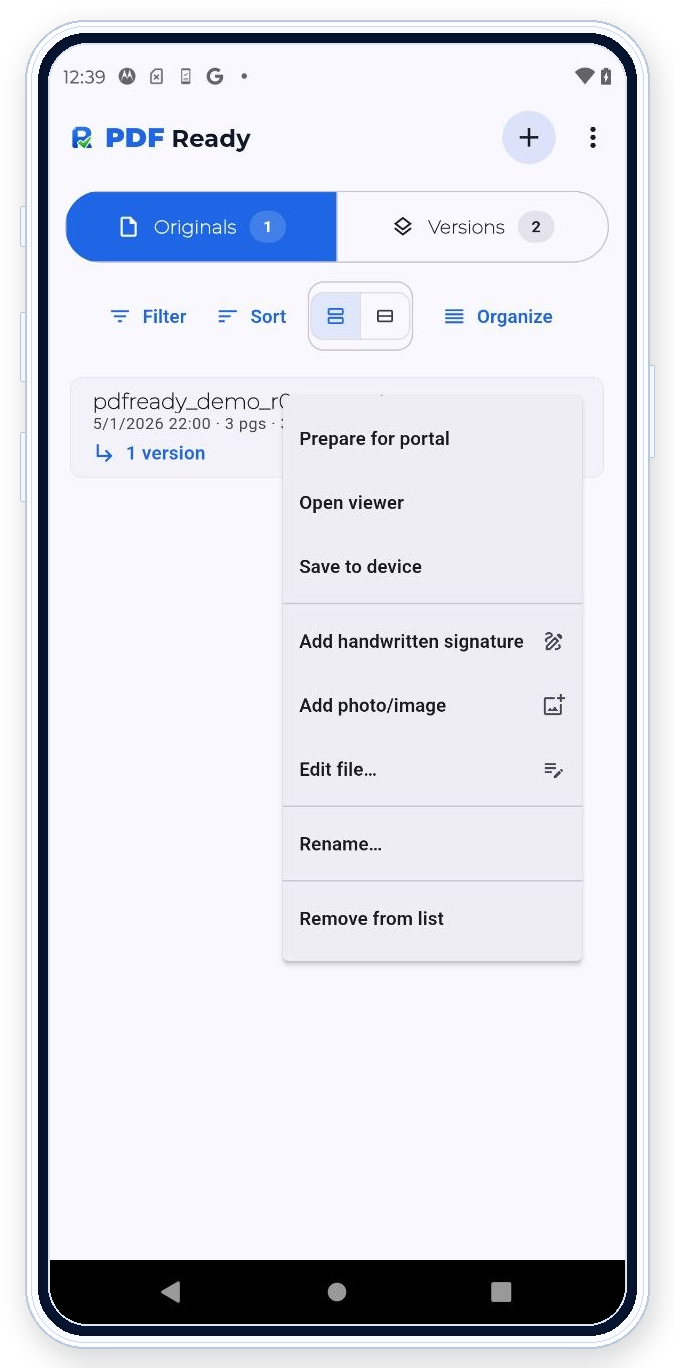

PDF Ready can place a visible handwritten-style mark on a PDF when that is accepted by the workflow you are using. It is a visual mark on the document, not a certified digital signature.
In the app
From the file’s three-dot menu, you can add a visible handwritten-style mark to the PDF. Then review the page where it appears to confirm placement, scale, and readability before export.
What this helps with
Use a visible signature when a form or upload workflow accepts a handwritten-style mark placed on the document. This can help with simple visual signing needs before export.
Workflow
Add the visible signature, review the page where it appears, then continue with size targeting or clean export. Keep the signed page readable and do not cover important text.
Review
Check placement, scale, page number, and readability. Confirm that the workflow accepts a visible handwritten-style mark before using this version.
Boundary
Do not use this function when the document needs digital signer validation. Keep the original if an existing signed PDF must remain valid. Processing a signed PDF can change the file.
Trust
PDF Ready helps prepare the file and lets you review the visible mark before clean export. The destination portal or workflow has the final say, and PDF Ready has no government or agency affiliation.
Related features
Use Edit pages if the signature page needs review. Use Review before export before creating the clean copy. Read Help if you are unsure about existing signed PDFs.