Guide
How Prepare works
Choose the portal, size, and options before you prepare the next result.
Starts from Originals
Choose portal and size
Review before clean export

Guide
Choose the portal, size, and options before you prepare the next result.
What Prepare is
Prepare is not clean export yet. It creates the next result so you can review it in Versions before deciding on the final clean copy.

Step 1
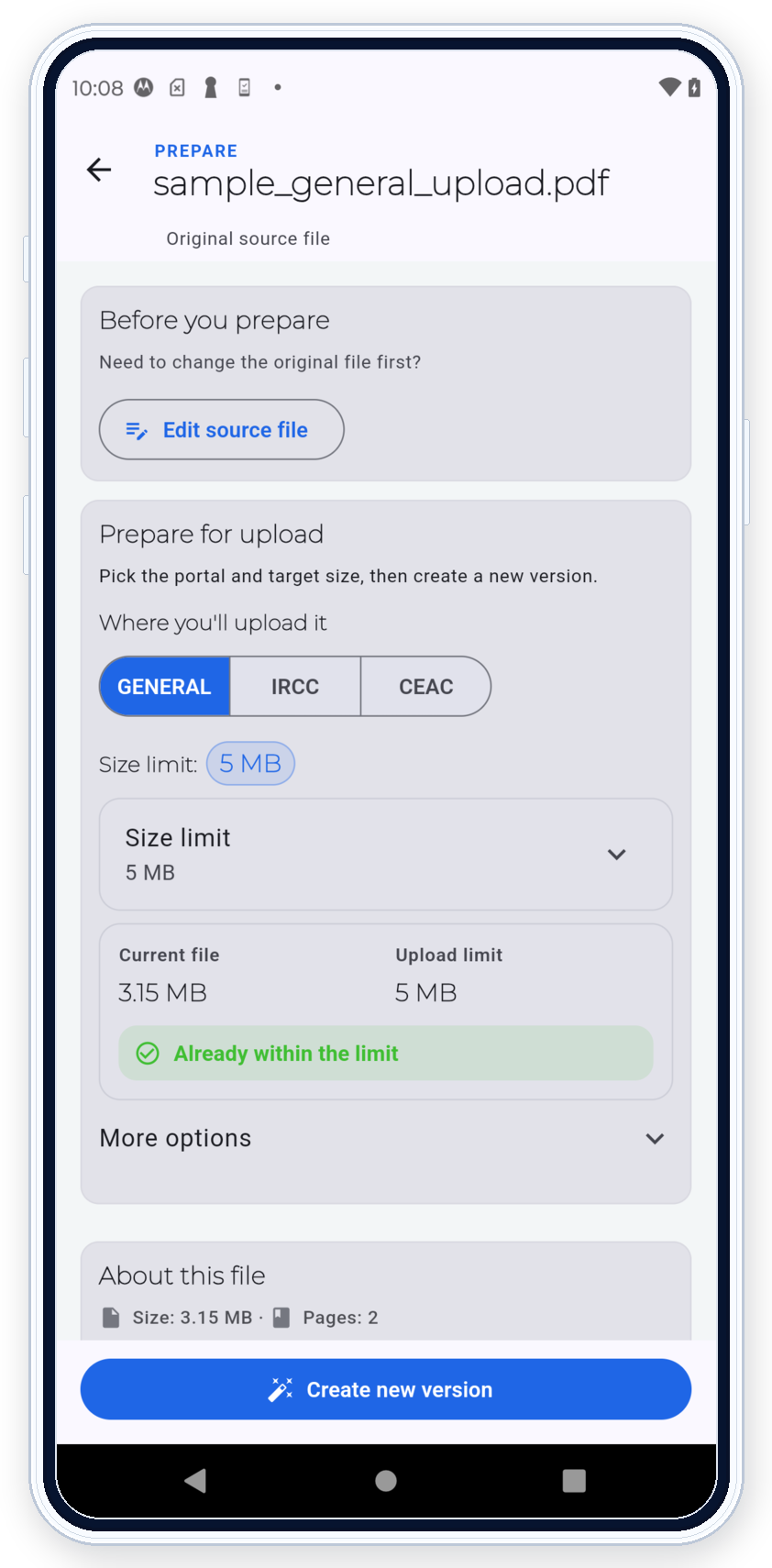
Open Prepare from the original file you imported or scanned, not from a result that is already in Versions. You can tap the file row to open that document screen first, or use the row menu if you want to jump straight to Prepare for portal.
Step 2

Step 3
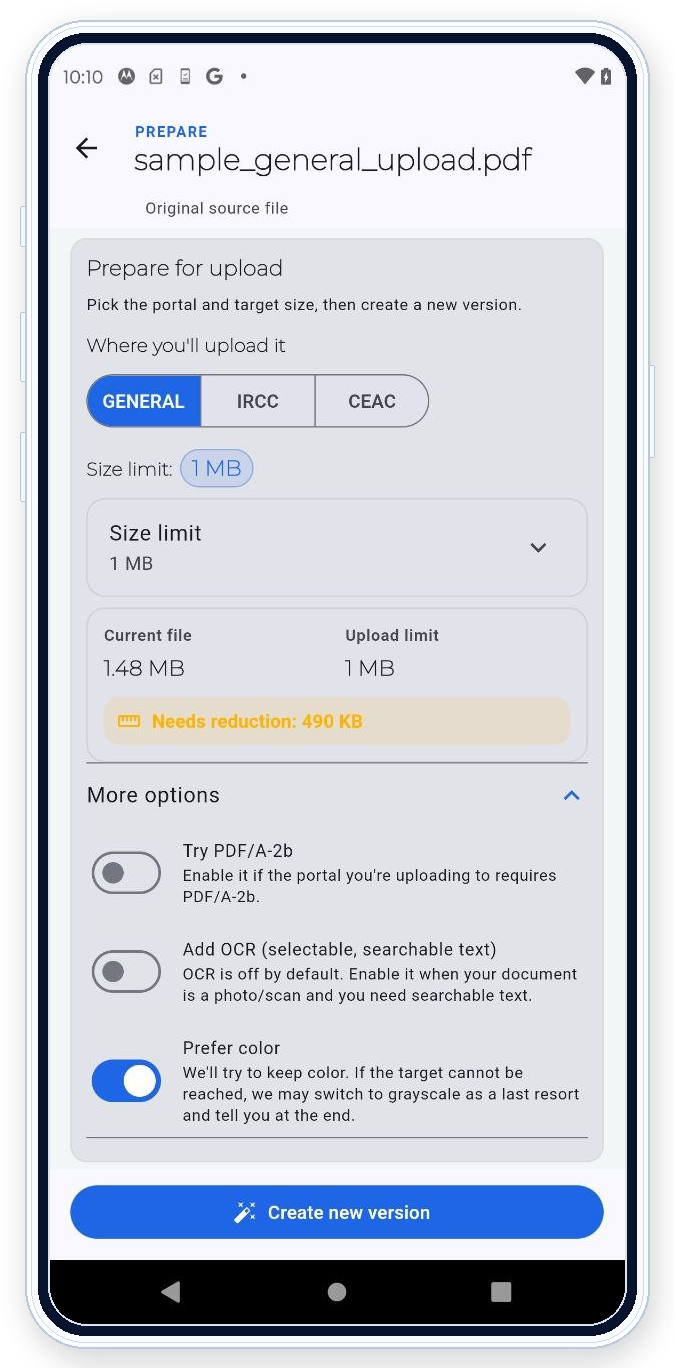
After you choose the portal, select the size that matches the actual upload you are dealing with.
Step 4
In GENERAL, start with the portal and Size limit first. Then open More options only when the document or portal really needs something extra. The three main toggles stay below the portal and size controls.

Step 5
Check size, readability, warnings, and compatibility in Versions before deciding whether this result is ready for clean export.
Step 6
Clean export is the final copy ready to save, share, or submit. It comes after review, not before it.

SAFE-MODE edge case
If the file is signed, XFA, or protected, PDF Ready warns you and keeps the original path instead of forcing a transformed result.
Next pages
Disclaimer: Prepare does not decide final acceptance. Portal rules can still reject a file.
Disclaimer: Some signed, XFA, or protected files may need the original path instead of a transformed result.